Manage Libraries
A user with the appropriate role, will be able to manage the document library for their service by selecting the document library items on the left hand menu. The User can select to Add a (new) Library or manage an existing library.
Create New Library
Select the Add Library option from the left hand menu. The Add Library field will be displayed

Enter the Library Name
Enter the Display Name (this can be either the same or different - it will be the name displayed on the Library tile on the search screen)
Enter the description of the library (not mandatory)
The Enabled Checkbox allows the user to create the library but not have it displayed on the search screen until a time in the future. This allows admin to create the library and take time to upload relevant documents before it is visible on the main library search screen.
Add document types. This allows the service to categorise different types of documents in each library. These categories will be available when uploading a document to a specific library
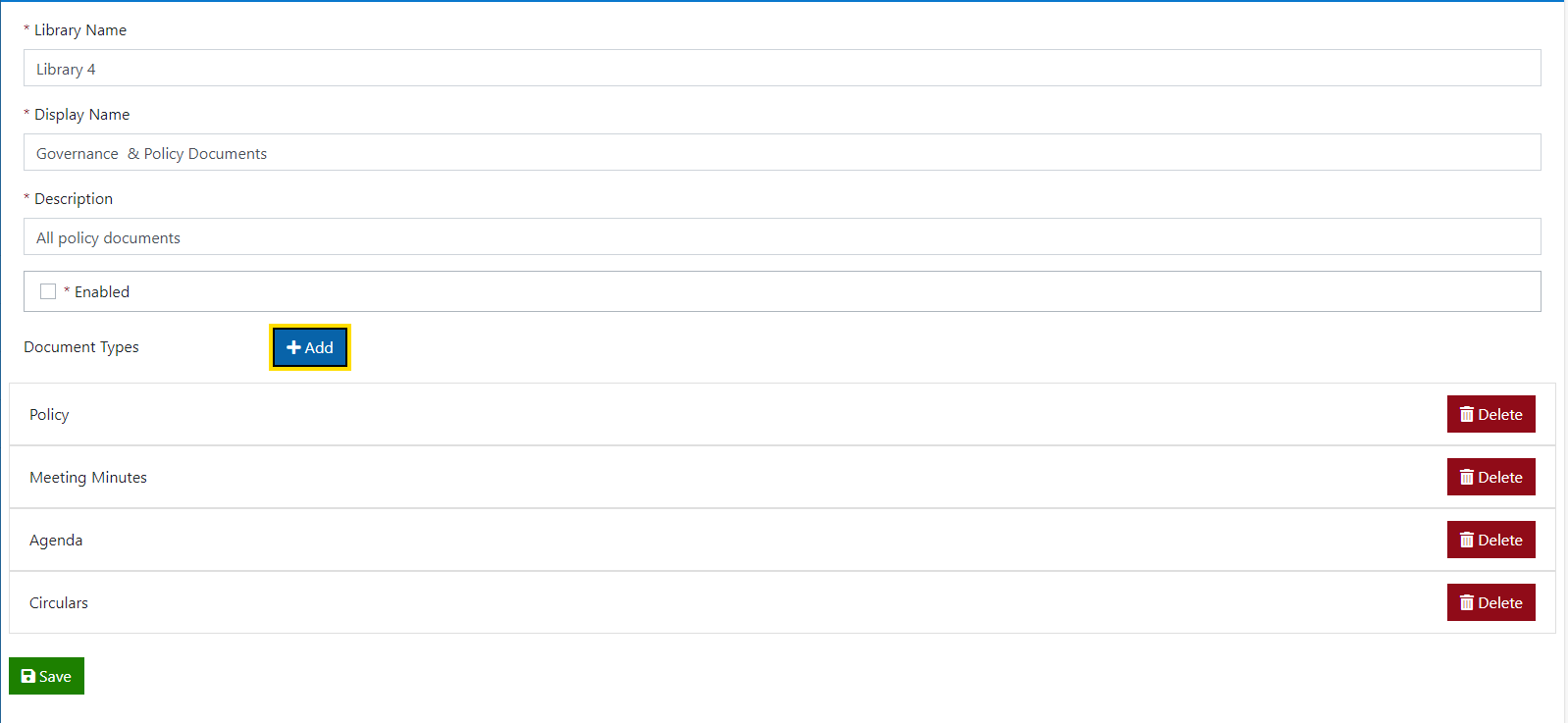
- Save the new library details.
View/Edit Document Libraries
Select Document Libraries from the left hand menu. A list of the existing libraries (if any) will be displayed.
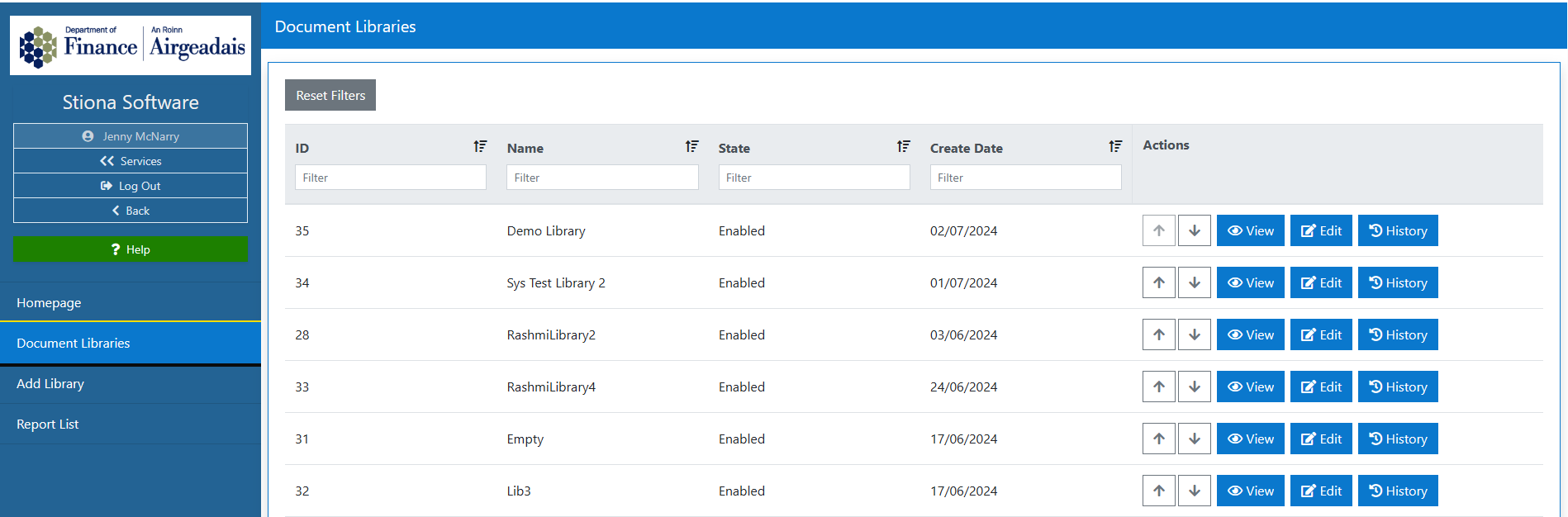
The library details can be edited (name/document types) etc from the Edit Button displayed at the end of the row.
The library priority in the list can be changed by using the up and down arrows. The order of the libraries in the list will be mirrored in the public view.
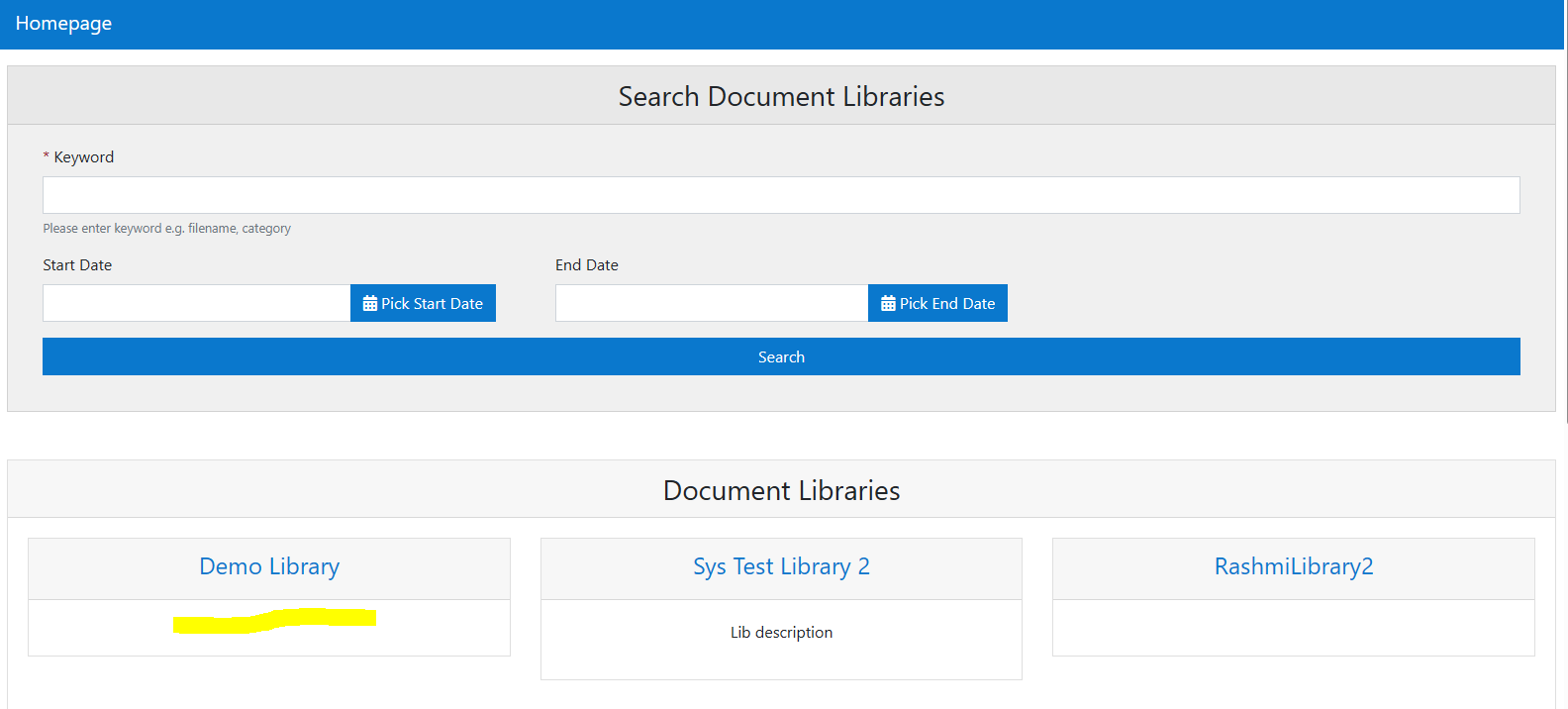
To add/view or edit any documents in the library, select the View Button against the required library.
This will navigate to the Edit Library screen :
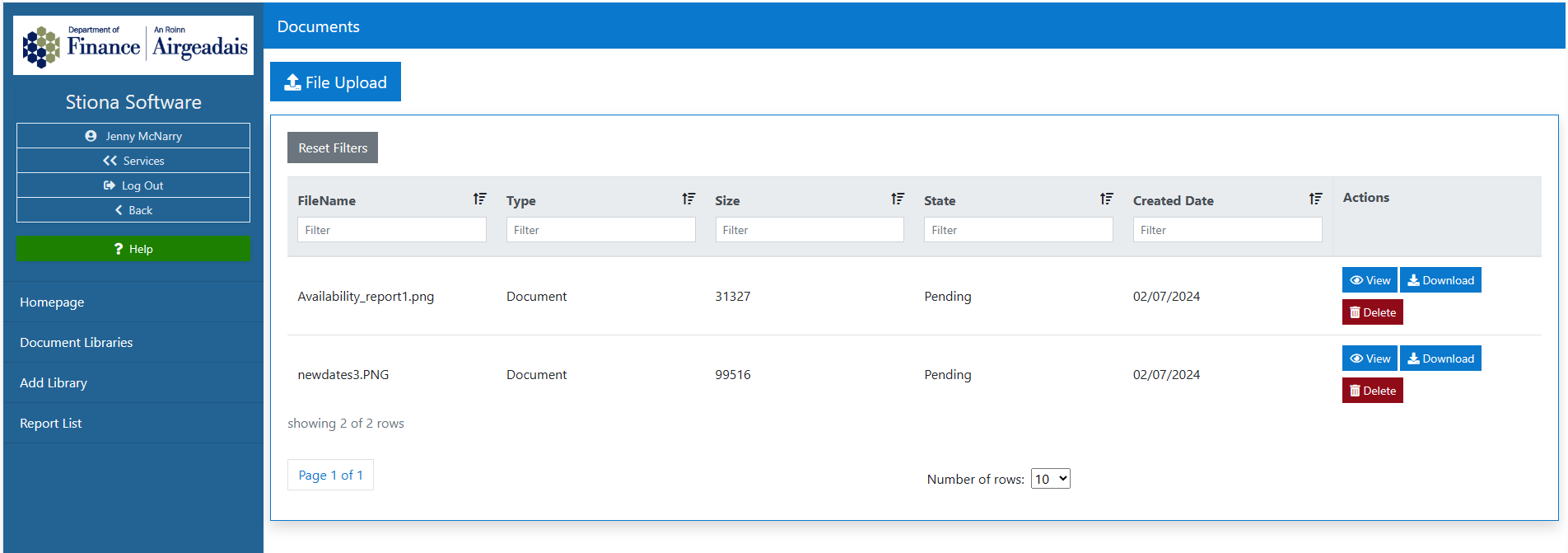
This screen will then show a list of documents already in the library along with a File Upload button, where new documents can be uploaded and each row will have a number of action buttons - that allow the user to manage each individual document.
File Upload
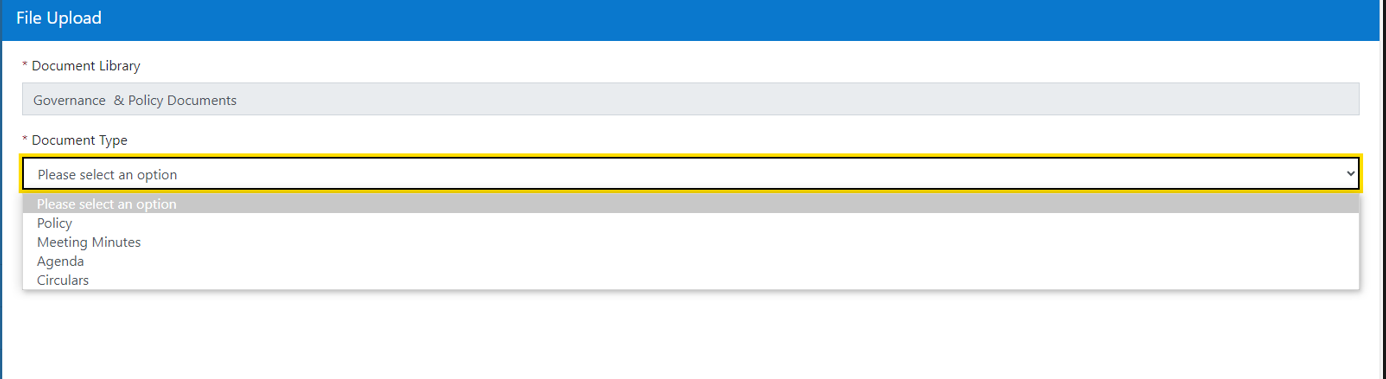
Each library will display a file upload button. On selection, the document that you are uploading will upload to that specific library. (If wrong library is selected the document can be moved)
The document types available in the dropdown on this screen, relate to the types available for this library (set up at creation but can be edited via the edit library button)
View/Edit Documents in Libraries
To View or edit a document in a library - select the View button on the document from the document list and the document sub menu will display
In this submenu you can :
- Add/ Remove Tags
- Move the document to an different library
- Change the sate of the document
- View the document history
Tags
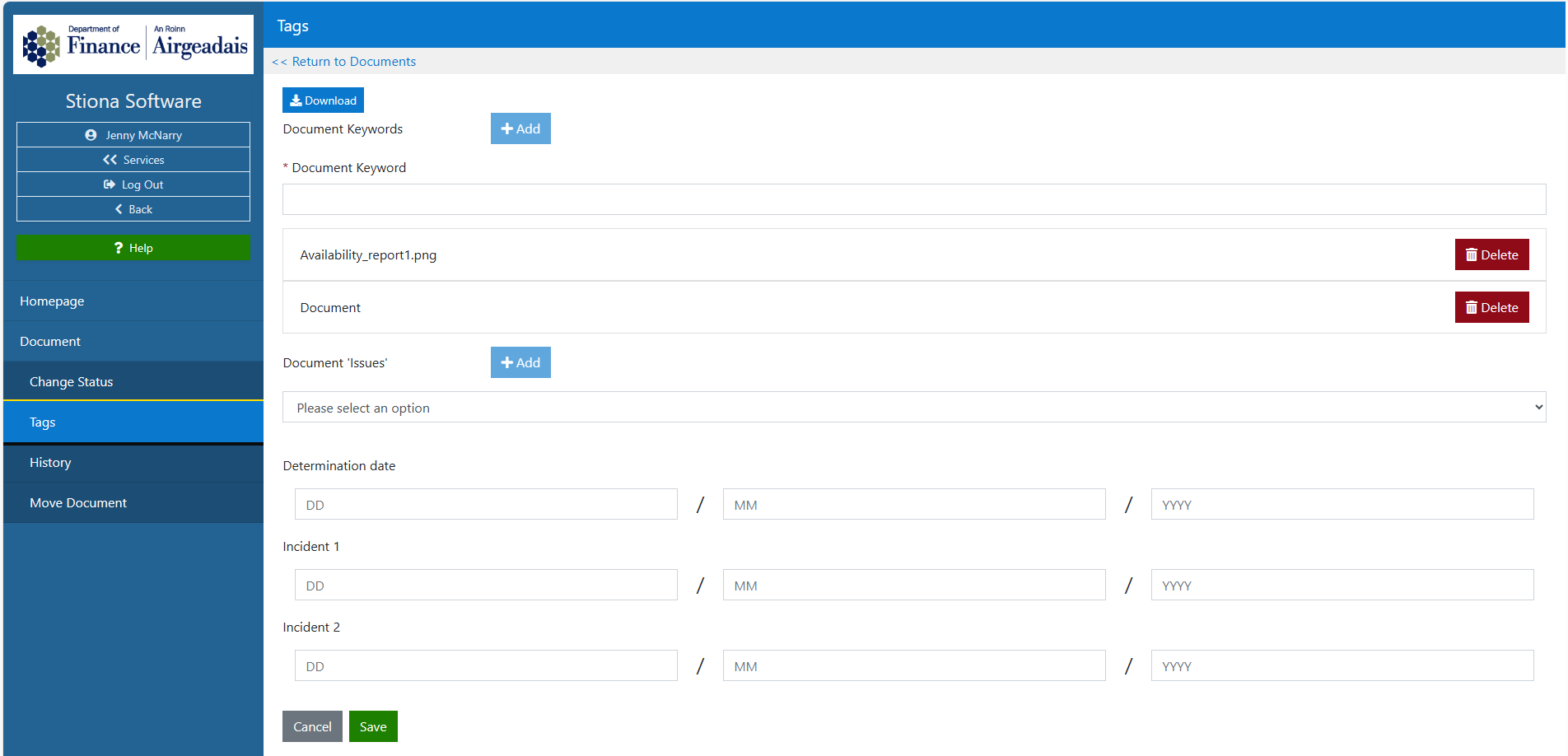
A document can have several types of tags attached
Keywords - these are keywords assigned to a document to help when users are searching a a document
Document Issues - this field name is configurable for your service. In the example below it is name 'Issues' and a dropdown list of identified issues can be attached to the document.
Date fields - these can be added to a document (depending on configuration)
Note
Any addition or removal of a tag - must be committed using the 'Save' button.
Move Document
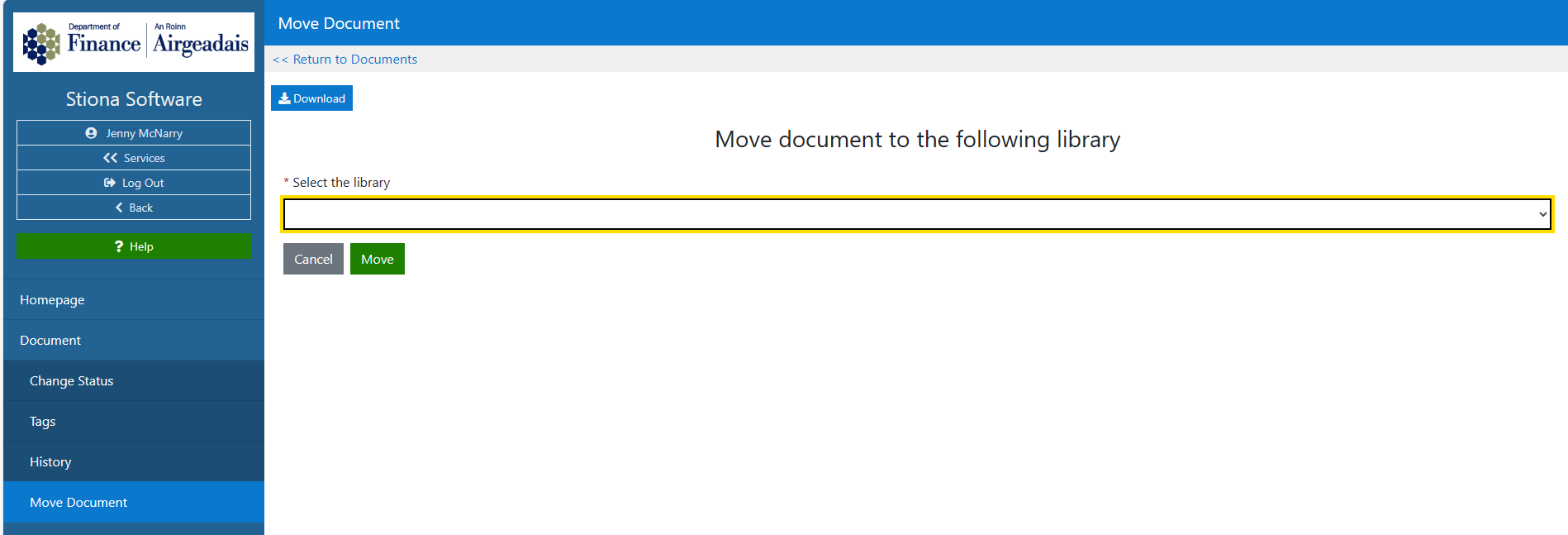
A document can be moved from one library to another via the 'Move' button. The dropdown list will display all available libraries.
Change Status
All documents uploaded to the document library, are uploaded with a 'pending' status. The document must be moved to 'live' using the change status button.
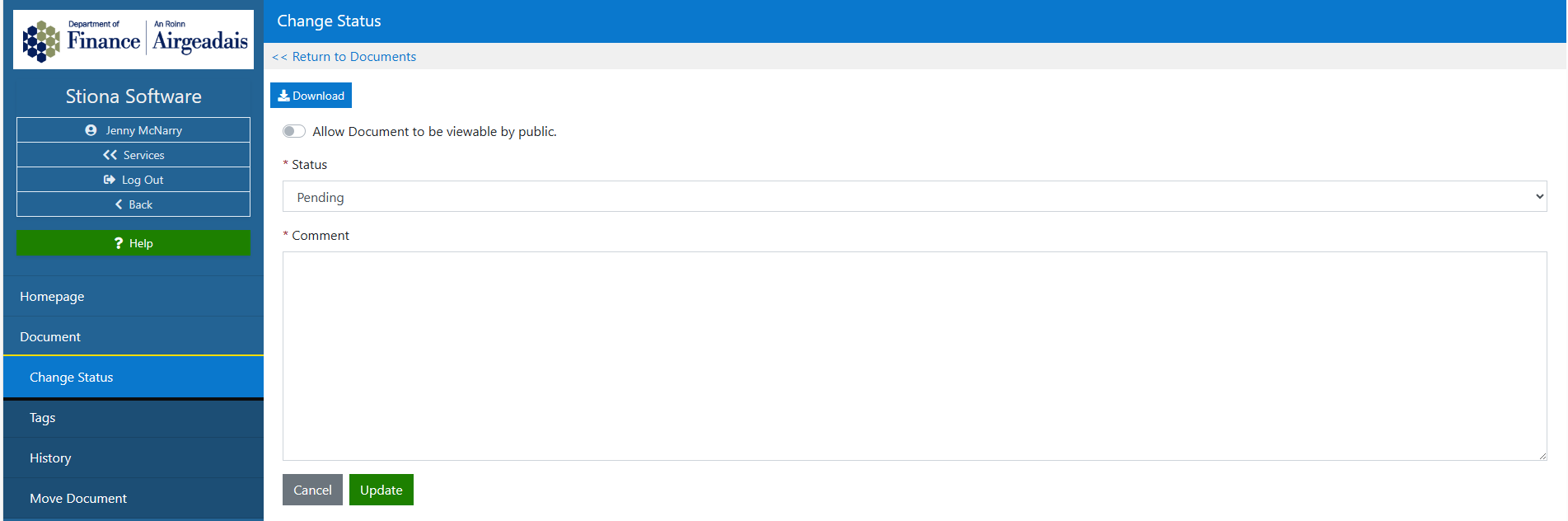
A document that has a live status, will be visible to users of the library. A live document can be changed to pending if temporary removal is required.
History
There is a a document history available, via the History button on the document view screen. This history will track all activities on the document - upload, adding/ removing keywords, moving libraries etc
